

Slack Integration
Get test run and result notifications in your Slack channels
QA Sphere integrates natively with Slack to keep your team informed without leaving their conversations. Once connected, QA Sphere can:
- Post channel notifications when test runs, test plans, milestones, and test results change
- Respond to slash commands (
/qasphere) for managing subscriptions directly from Slack - Expand QA Sphere links pasted in Slack into rich preview cards
Connecting or disconnecting the Slack workspace requires the Owner or Admin role in QA Sphere. One Slack workspace can be connected to one QA Sphere workspace at a time.
Connecting Your Slack Workspace
- Navigate to Settings > Integrations and click Connect on the Slack Workspace row (alternatively, click Create and select Slack).

-
A Slack authorization window opens. If you are not signed in to Slack in your browser, Slack will first ask you to sign in to your workspace.
-
Review the requested permissions, make sure the correct workspace is selected in the workspace picker, and click Allow.
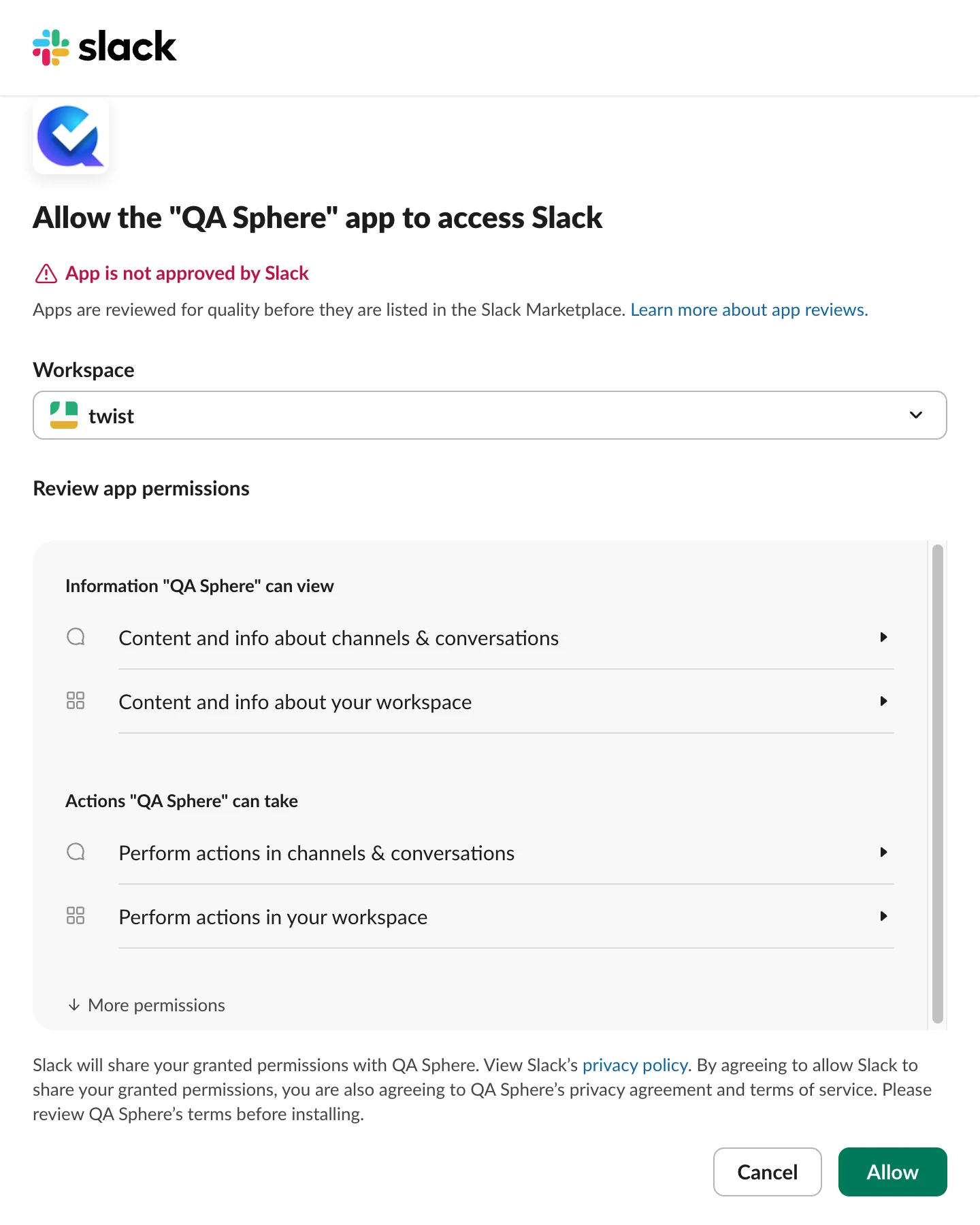
- The window closes automatically and QA Sphere confirms with a "Slack connected successfully." message. The Slack Workspace row now shows a Connected badge along with your workspace name.

Linking Your Slack Account
Individual users link their Slack identity to their QA Sphere account. Linking is required to subscribe channels to projects and to see link previews for QA Sphere URLs.
- The user who connects the workspace is linked automatically.
- Everyone else can run
/qasphere linkin any channel or DM with the QA Sphere app. The bot replies with a personal link that opens QA Sphere, where you confirm the connection. The link expires after 15 minutes.
A Slack account can be linked to only one QA Sphere account.
Subscribing a Channel to a Project
In the Slack channel that should receive notifications, run:
/qasphere subscribe project <CODE> events allReplace <CODE> with your QA Sphere project code (for example, BD). The bot joins the channel automatically and confirms the subscription.

The QA Sphere bot can join public channels on its own. For private channels, invite it first with /invite @QA Sphere.
You can subscribe a channel to multiple projects, and a project to multiple channels. Subscribing requires access to the project in QA Sphere — Owners and Admins can subscribe to any project, while other roles need to be members of it.
Slash Commands
| Command | Description |
|---|---|
/qasphere subscribe project <CODE> events <runs,results|all> | Subscribe the channel to project notifications |
/qasphere unsubscribe project <CODE> events <runs,results|all> | Unsubscribe from some or all of a project's notifications |
/qasphere list | List the active subscriptions in this channel |
/qasphere link | Link your Slack account to QA Sphere |
/qasphere | Show help |
Event Categories
Subscriptions are configured per event category:
| Category | Covers |
|---|---|
runs | Test runs created, updated, closed, reopened, or deleted; test plans created, closed, reopened, or deleted; milestones closed or deleted |
results | Test results recorded, updated, or deleted (batch operations are summarized in a single message) |
all | Both of the above |
Notifications
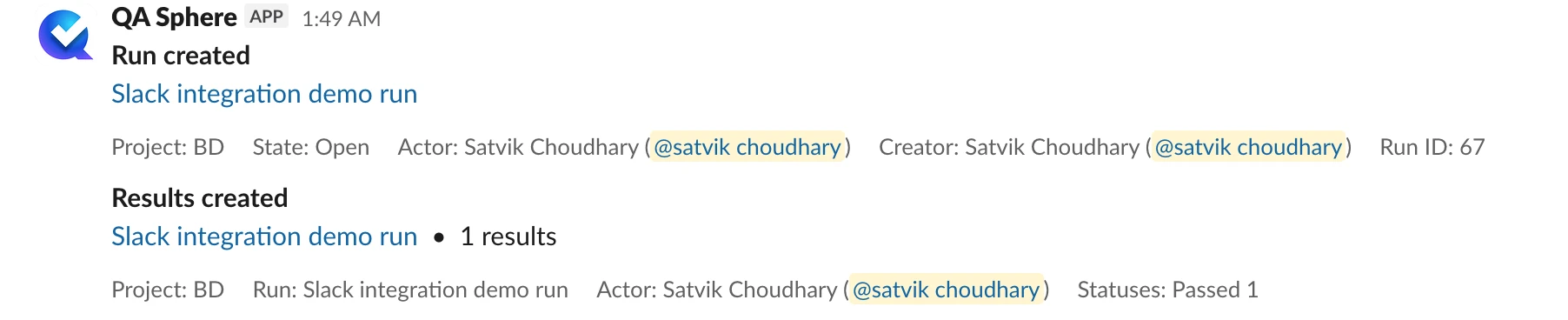
Once subscribed, the QA Sphere bot posts a message to the channel whenever a matching event occurs. Each notification links back to the entity in QA Sphere and includes key details such as the project code, state, and the user who performed the action.
Link Previews
When a linked user pastes a QA Sphere URL — a test run or a test case — into Slack, the bot expands it into a preview card with the entity's key details and an Open in QA Sphere link.
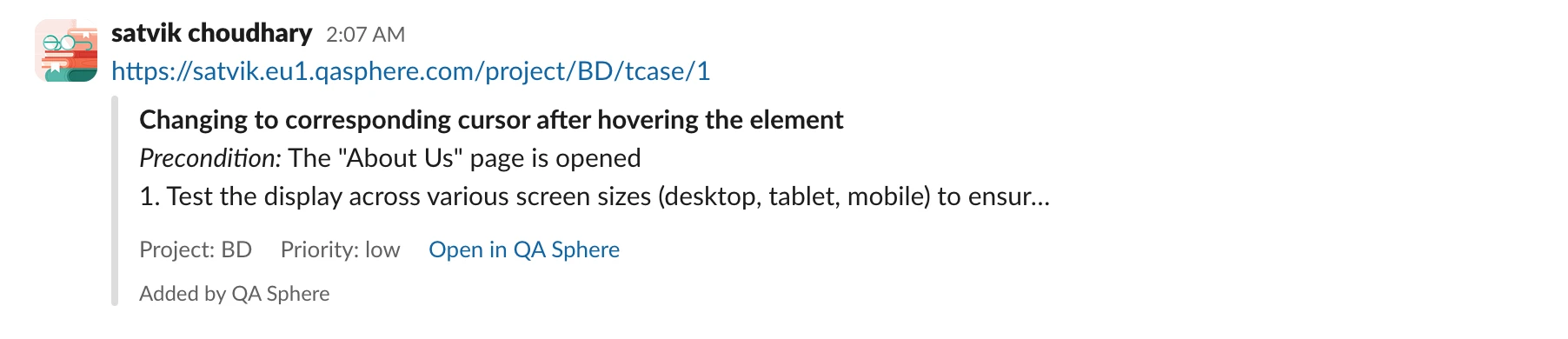
Previews are shown only for links to your own QA Sphere workspace, and only when the user who posted the link has access to the project.
Managing the Integration
On Settings > Integrations, the connected Slack Workspace row offers:
- Reconnect — re-runs the Slack authorization. Useful if the connection stops working or permissions change. Disconnecting first is not required.
- Disconnect — stops all notifications and disables the app in your workspace. Channel subscriptions are kept, so reconnecting later restores notifications without re-subscribing each channel.
Uninstalling the QA Sphere app from within Slack also disables the integration.
All connection, account linking, and subscription changes are recorded in the QA Sphere audit log (Settings > Audit Log).
If you need more control over message formatting or want to notify systems other than Slack, use Webhooks — they support custom payload templates, including Slack's Block Kit format.
Need Help?
Contact support for assistance with the Slack integration.