

Import with AI
Using AI to import test cases from other tools, spreadsheets, and documents
QA Sphere offers two AI-backed ways to bring test cases in, and they do different jobs:
- AI Assisted Import takes a structured file - an export from another test management system, or a spreadsheet with one test case per row - and transforms it into QA Sphere's format. It maps columns to fields and restructures the data. It does not rewrite your content.
- Bulk Write with AI takes unstructured content - notes, requirement documents, free-form descriptions - and writes test cases from it. It rewrites the content and can generate test cases that were not in the source.
Both cost AI credits, and both depend on the AI's reading of your data. If your data already fits one of the built-in importers or QA Sphere's CSV layout, use the standard import instead: it is exact, predictable, and gives the same result every time. See Choosing an Import Method for the full comparison.
AI Assisted Import
Use this when you are migrating from a tool QA Sphere has no built-in importer for, or when your spreadsheet is structured but not in QA Sphere's layout - different column names, a numbered step column per step, steps in one cell, priority scales like P1/P2/P3, HTML in the cells, or a suite/section hierarchy instead of a folder path.
The AI writes a mapping for your file, runs it over every row, validates the result against QA Sphere's rules, and hands you a QA Sphere CSV. Your titles, steps, and expected results arrive exactly as they were written in the source.
How to Use AI Assisted Import
- Open a project and go to the Test Cases tab
- Click
 and select Import
 - Under Where does your data come from?, choose Other (AI assisted import) and click Next
- Select your CSV or TSV file
- Optionally, add instructions - for example how columns map to fields, how to read priority values, which columns to skip, or whether to keep the source IDs as Legacy IDs. The AI infers the mapping from column names and values, so instructions are only needed to resolve ambiguity or to override a default
- Choose the folder to import into and whether to overwrite existing test cases
- Click Transform
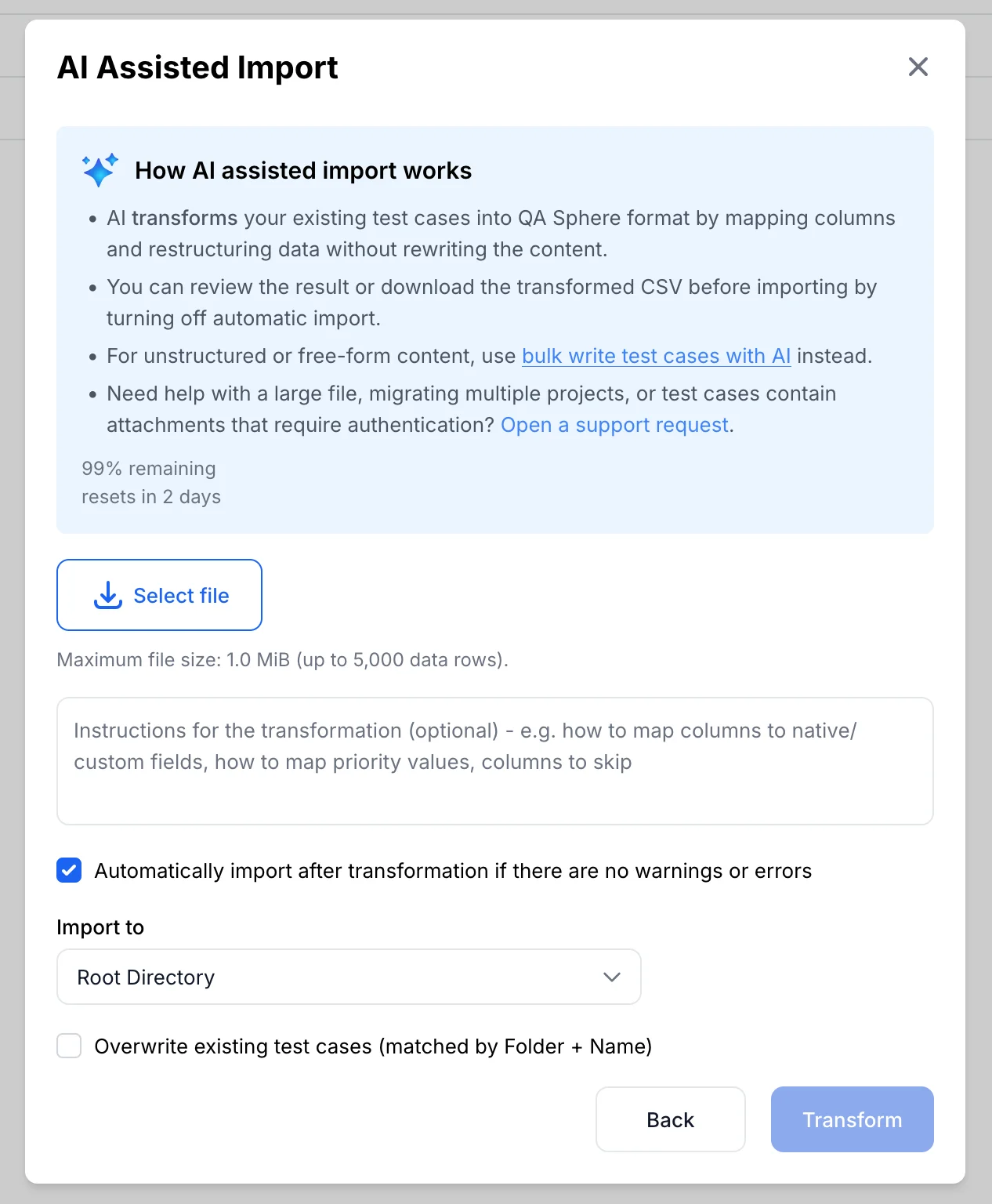
The AI analyzes the file, tests its mapping on all rows, and refines it until every test case passes validation. You can cancel at any point.
When the transformation finishes, you see a summary of what was mapped, along with any warnings. From there you can:
- Import the transformed test cases straight away
- Download CSV to inspect or edit the result, and import it later as a QA Sphere CSV using the standard import
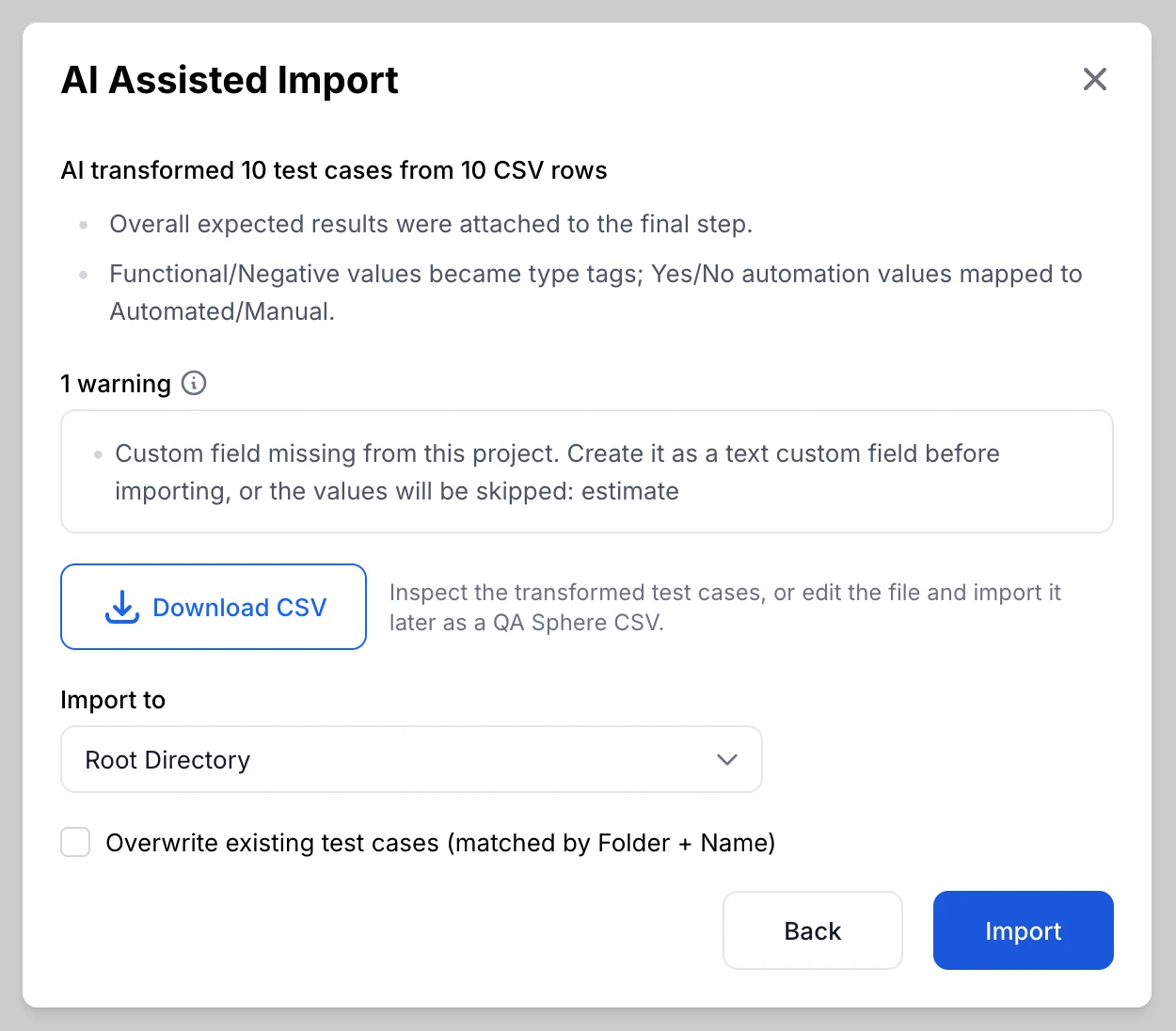
The AI never invents, summarizes, or rewrites your content. Columns it cannot place are kept as tags or text custom fields where possible and listed in the summary, and a file that is not test case data is declined with a pointer to Bulk Write with AI.
AI Assisted Import accepts CSV and TSV files up to 1 MB, 5,000 data rows, and 256 columns. For larger migrations, several projects, or files whose attachments require authentication to download, contact support and we will handle the import for you.
Bulk Write with AI
Use this when your source is not a table of test cases: meeting notes, a requirements document, a specification, or a spreadsheet whose rows are loose descriptions rather than complete test cases. The AI reads the content and writes structured test cases from it, filling in steps and expected results where the source only implies them. The result is a first draft to review, not a copy of the source.
How to Use Bulk Write with AI
- Open your project and go to the Test Cases tab
- Click Create → Bulk Test Cases with AI
- Attach your file (CSV, text, Markdown, or PDF) or paste the content into Functional Requirements
- In the Ask AI prompt, describe what you want, for example:
Parse the attached file and generate test cases based on its data.- Review the generated test cases and make any adjustments
- Save the test cases to your project
The AI interprets your content and suggests test cases based on it. Some variation occurs between runs depending on how the source is organized.
Generated cases that duplicate test cases already in the project are highlighted during review, so re-running a batch does not quietly double your library. A confirmation dialog also appears if you navigate away with a batch still in progress. See AI Features for more on duplicate detection and AI rules.
Tips
- Keep clear column headers in your spreadsheet; both methods read them to understand the data
- With AI Assisted Import, spot-check a few transformed test cases before importing a large file, especially ones with rich text or steps that were split out of a single cell
- If a column was mapped differently than you intended, adjust the instructions and run the transformation again
- Review generated test cases from Bulk Write with AI before saving, as the AI fills gaps in the source with its own judgment
- Conventions you repeat in every prompt belong in a global AI rule