

GitHub Integration
Connect GitHub to QA Sphere to create and link GitHub issues from test results
QA Sphere seamlessly integrates with GitHub. While going through test cases in a test run, you can create GitHub issues or link existing ones to the results, and every linked issue links back to QA Sphere. This integration streamlines your workflow and ensures efficient issue tracking.
Configuring GitHub Integration
To integrate GitHub Issues into QA Sphere, follow these steps:
- Go to Settings by clicking the gear icon
 in the top right corner and choose Workspace Settings.
- Select Issue Trackers from the left sidebar.
- A list of all available projects will be displayed. Click the + button next to the appropriate project to add integration.
- Choose GitHub from the list of available integrations.
- Install the QA Sphere app in your GitHub account.
- Provide your GitHub account URL for integration.
- Once the connection is established, select or create a GitHub project for QA Sphere to add issues to.
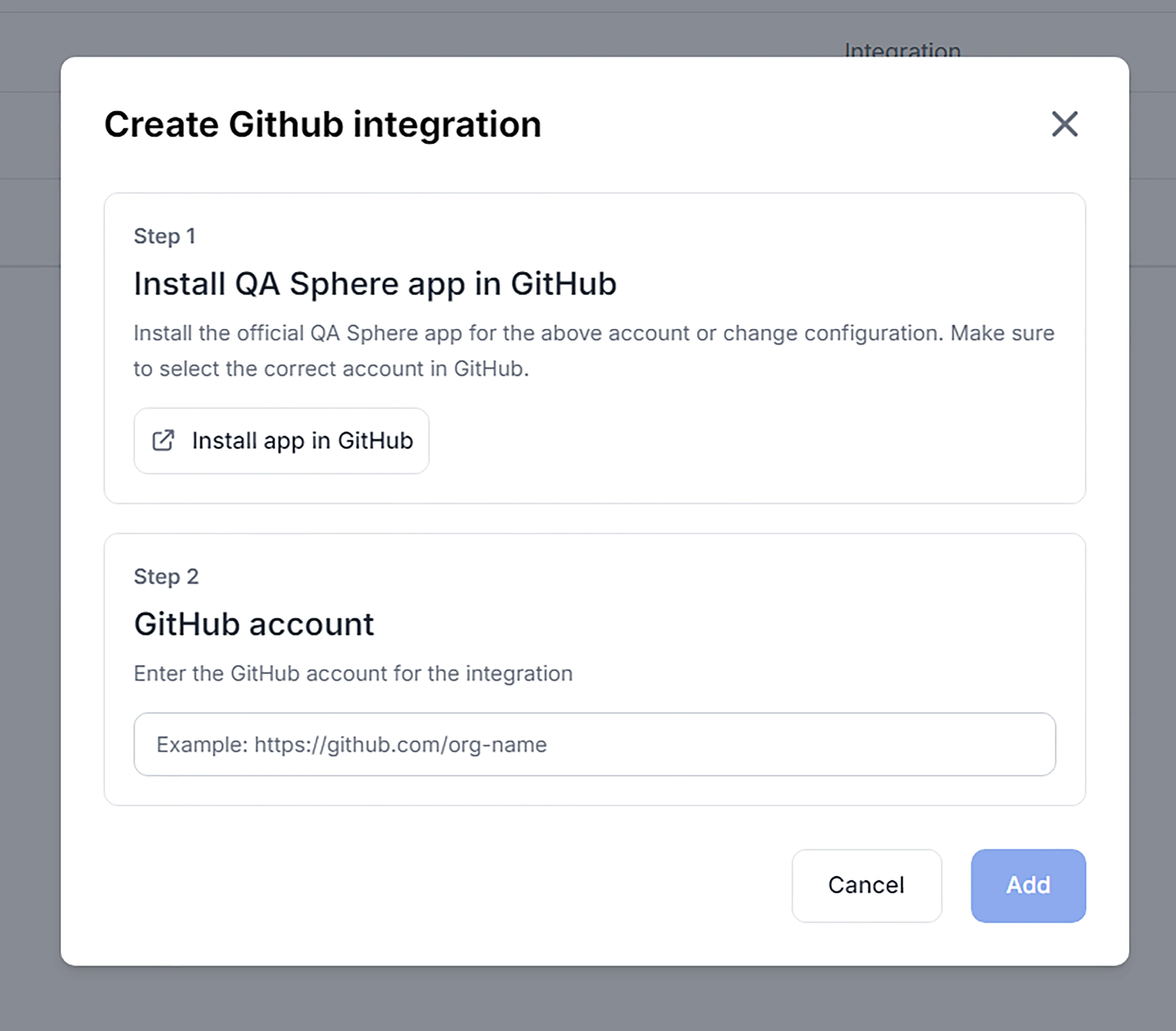
Using GitHub Issues Integration
Once configured, the GitHub Integration allows you to link existing issues or create new ones directly from QA Sphere while adding test case results. To create or link a GitHub issue during testing:
- Within your project, navigate to the Test Runs section.
- Select an existing test run or create a new one.
- Choose a test case within the run.
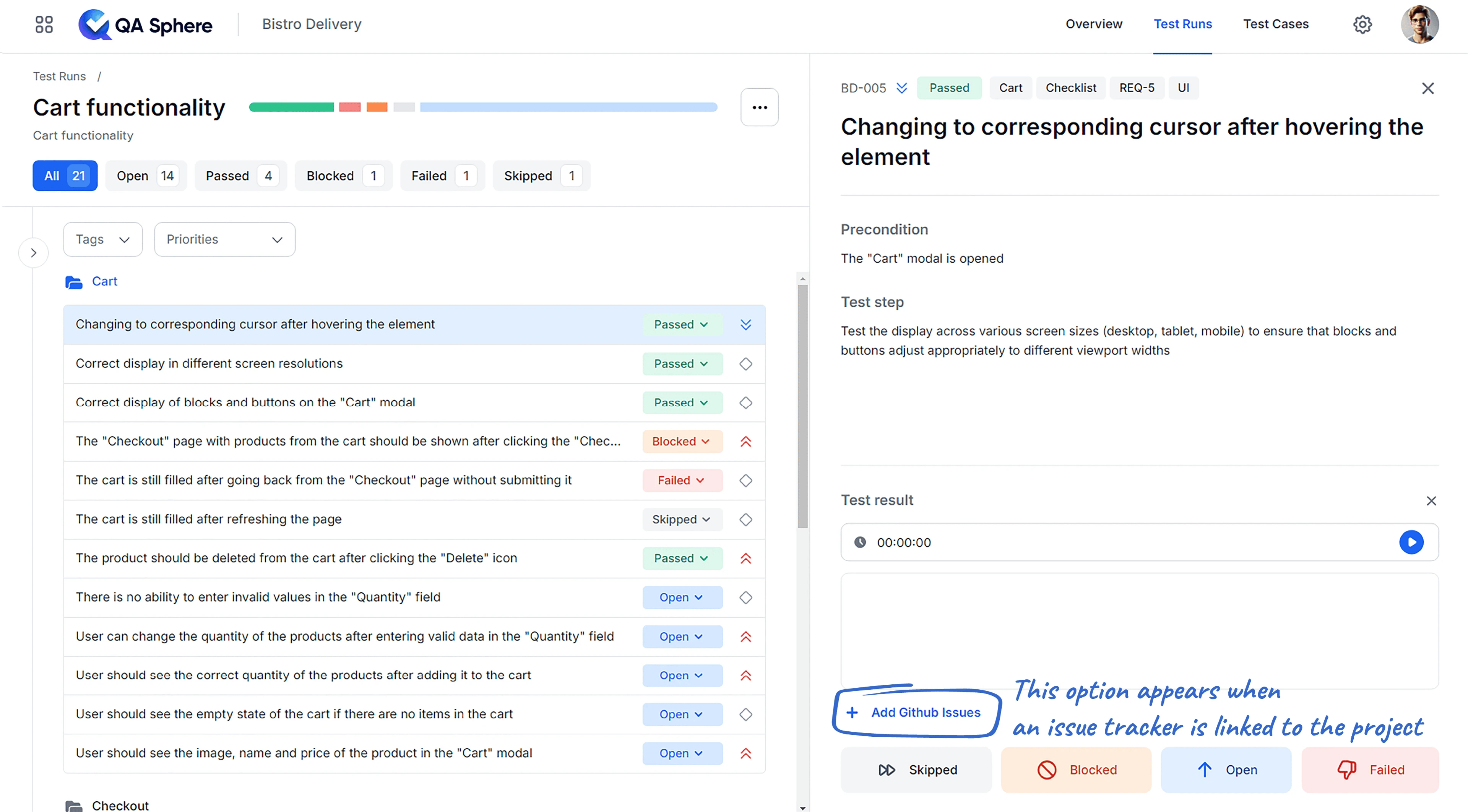
- When changing the status of the test case, click + Attach Github Issues and select one of the following options:
- Link Existing Issue - Paste the link of an existing issue in the assigned GitHub project.
- Create New - Enter the Title and Description manually or use AI to auto-generate them based on test case details and result comments. A new GitHub issue will be created in the assigned GitHub project.
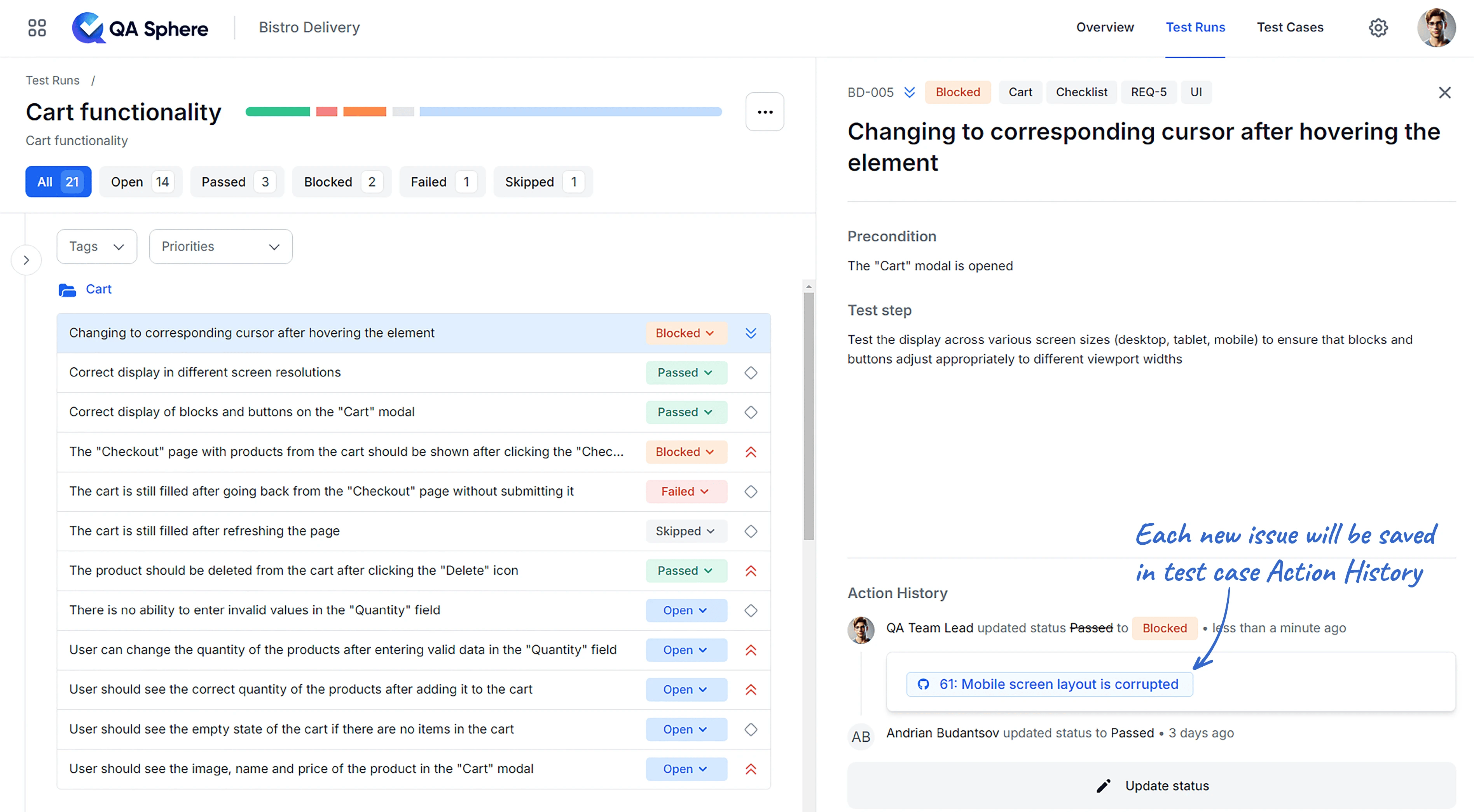
All issues linked or created for the test case will be saved under the Action History for this test run, providing a clear trail of documentation.
Disable GitHub Integration
To detach GitHub project from QA Sphere follow the steps below:
- Go to Settings
- Select Issue Trackers
- Click the trash can icon next to the project with the integration you want to remove.
- Agree to the integration deletion.
Note: The GitHub account can be further reused for another integration or you can choose to delete the saved account when adding new GitHub integration.
Bidirectional Linking
Linking a GitHub issue to a test result adds a comment with the result on the issue, so the issue leads back to the tests that reference it.
Benefits of GitHub Integration
- Streamlined Workflow: Create issues without leaving QA Sphere.
- Consistency: Ensure all issues are properly documented and tracked.
- Traceability: Easily link test cases to specific GitHub issues.
- Efficiency: Reduce time spent switching between tools.
By leveraging this integration, your team can maintain a more cohesive and efficient testing and issue management process.