

Security
Sign-in methods, two-factor authentication, IP restrictions, and audit logging for your workspace
Workspace-wide security is configured in Settings → Security. This page covers the controls available there and how they interact. Configuring them requires the Admin or Owner role.
Sign-In Methods
QA Sphere supports several ways in, and you choose which are enabled for your workspace:
| Method | Availability | Notes |
|---|---|---|
| Password | All plans | Email and password, with optional two-factor authentication |
| Google Sign-In | All paid plans | Can be restricted to approved email domains |
| SAML 2.0 SSO | Business plan and above | Okta, Microsoft Entra ID, Auth0, Google Workspace, JumpCloud, and others — see SAML SSO |
At least one sign-in method must remain enabled at all times. Disabling a method signs out every user who has no remaining allowed method, so check who depends on a method before turning it off.
To make SSO the only way in, turn off both Password Authentication and Sign in with Google once SAML is verified.
Restricting Google Sign-In to Your Domains
Google Sign-In accepts any Google account by default. Add an allowlist of approved email domains to limit it to accounts you control, so a personal Gmail address cannot be used to reach an invited seat. The allowlist is part of the Google Sign-In configuration, so it is available wherever Google Sign-In is.
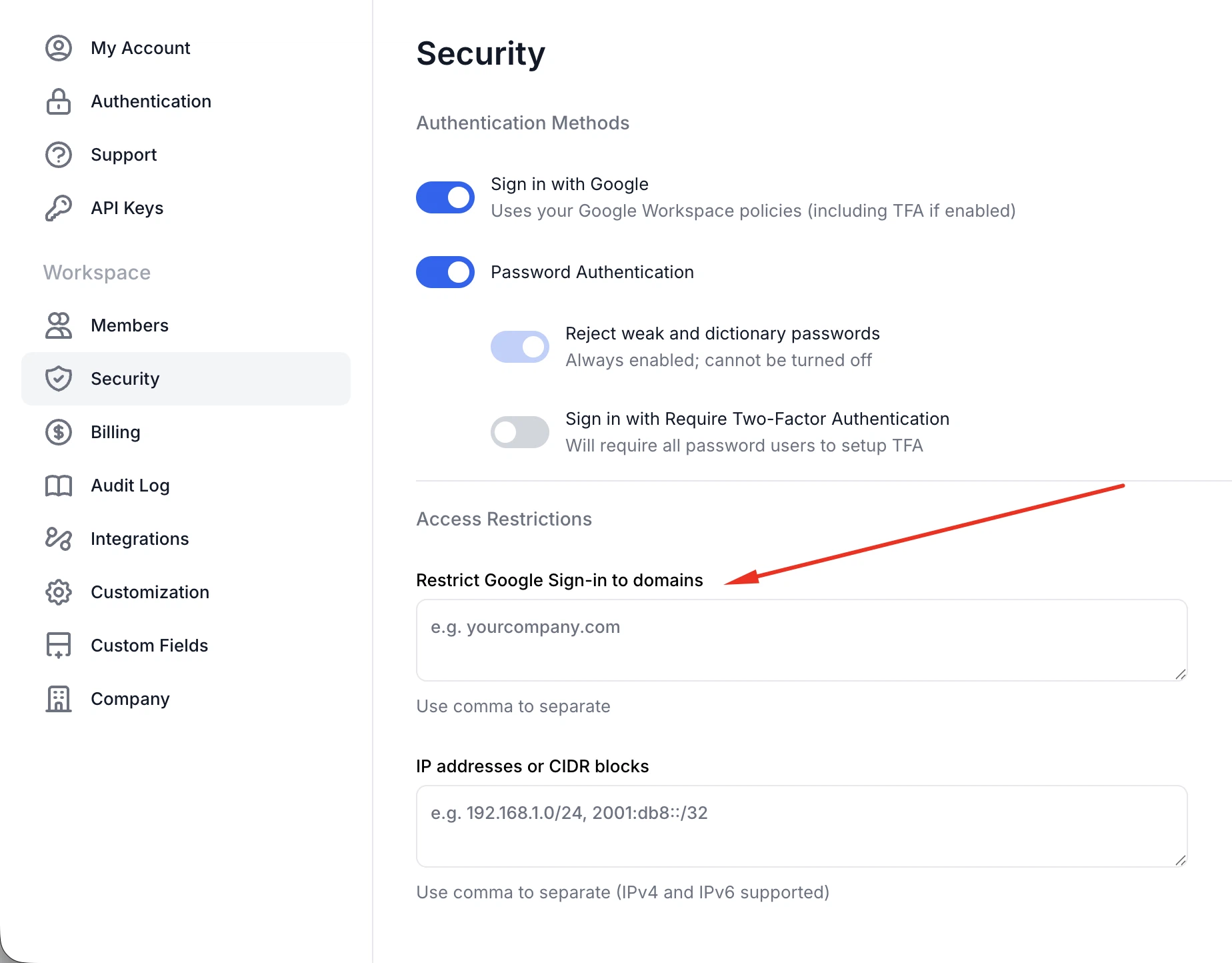
If your organization uses several verified domains, list all of them. Users whose Google account falls outside the allowlist are rejected at sign-in.
Two-Factor Authentication
Two-factor authentication is available on every plan, and any user can enable it for their own account from their profile.
Enforcing 2FA Workspace-Wide
On the Business plan, admins can require 2FA for everyone in the workspace. When you enable enforcement:
- Users who already have 2FA configured are unaffected.
- Users without 2FA are signed out and must complete 2FA setup on their next sign-in.
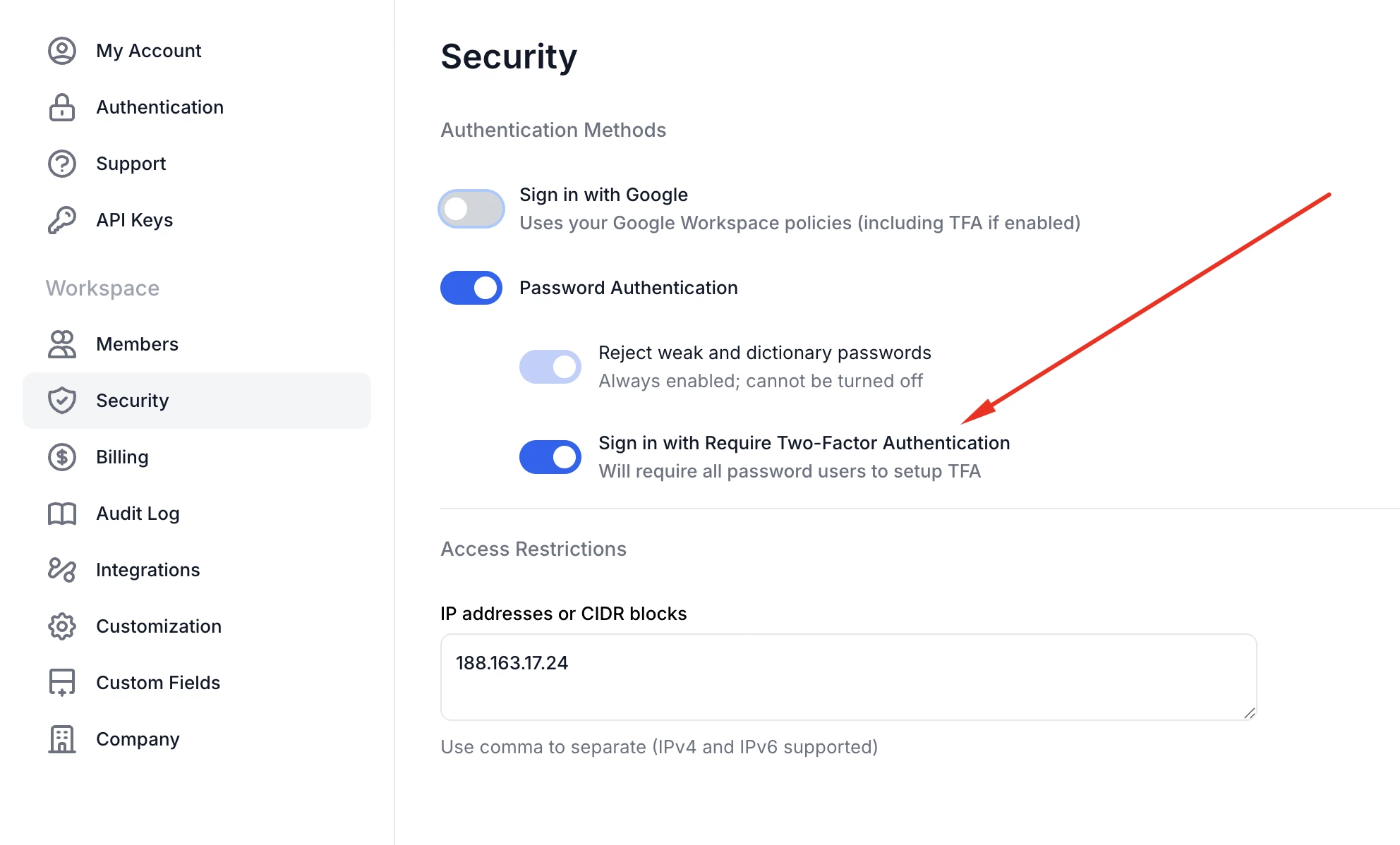
Enforcement signs out every user who has not yet set up 2FA. Announce it before you enable it, or you will field a wave of confused messages from people who cannot get back in.
The 2FA status of each member is visible and sortable in Settings → Members, which is the quickest way to see who still needs to enrol before you enforce.
2FA applies to password sign-ins. For SAML sign-ins, multi-factor authentication is your identity provider's responsibility — QA Sphere does not run its own challenge on top of a SAML assertion.
IP Allow List
On the Business plan, workspace access can be restricted to a list of approved IP addresses or CIDR ranges — useful when access should only be possible from an office network or a corporate VPN.
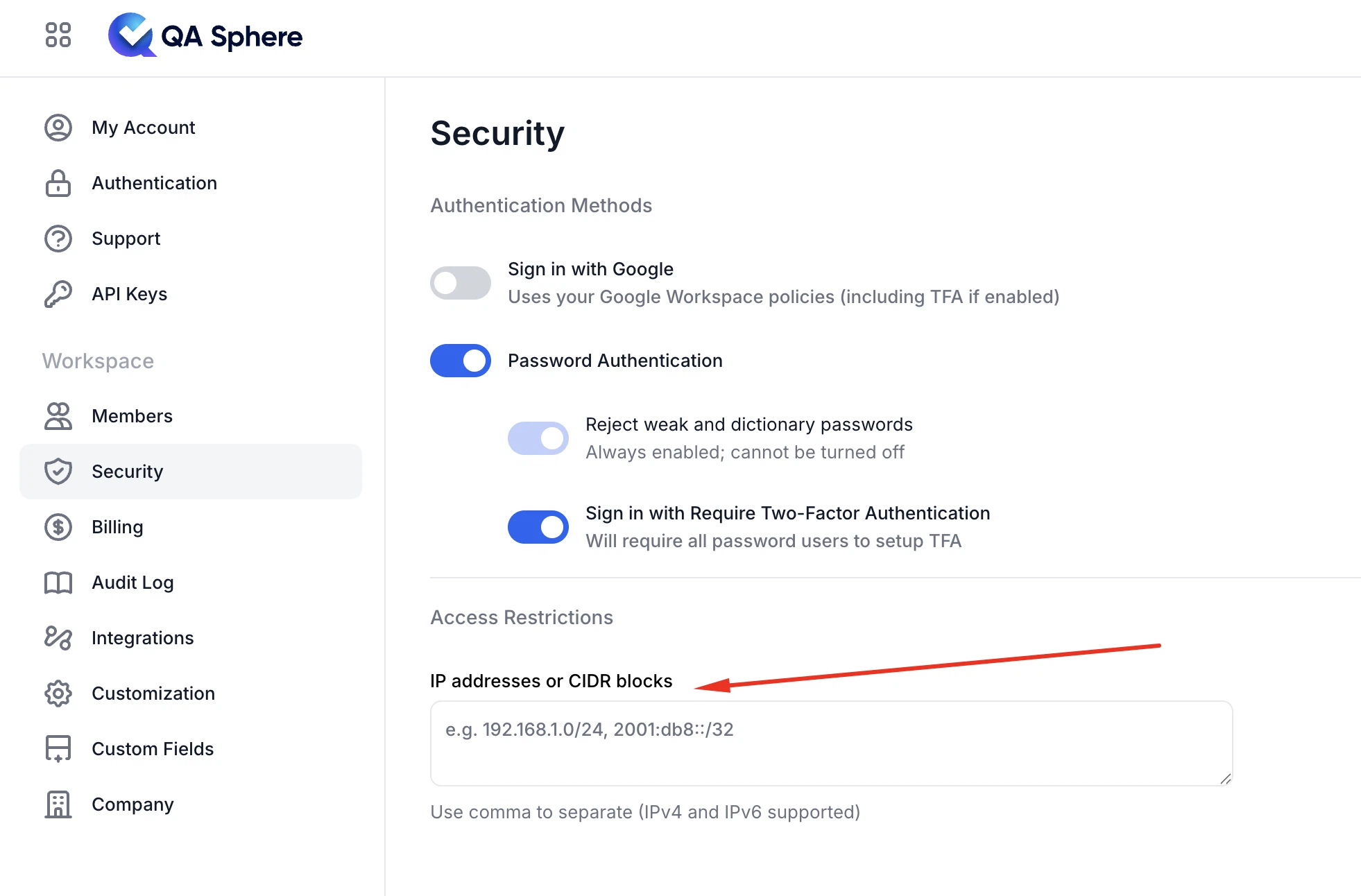
Before enabling it, work through the list of everything that reaches your workspace:
- Your own current address, or you will lock yourself out along with everyone else
- Remote and travelling team members, whose addresses change
- CI/CD runners that upload results through the CLI or call the public API — cloud runners often use wide, changing ranges
- Webhook and integration callbacks, if they originate from your own infrastructure
Before switching the allow list on, confirm whether it also covers API and CLI traffic in your configuration. If it does, a pipeline that uploads test results will start failing as soon as its runner's egress addresses fall outside the list. Test it against a non-critical pipeline first.
Managing User Access
Suspending and Restoring Users
Admins can suspend a user instead of deleting them. A suspended user cannot sign in, but their account and everything they authored — test cases, runs, results, audit history — is preserved intact. Restoring access is a single action.
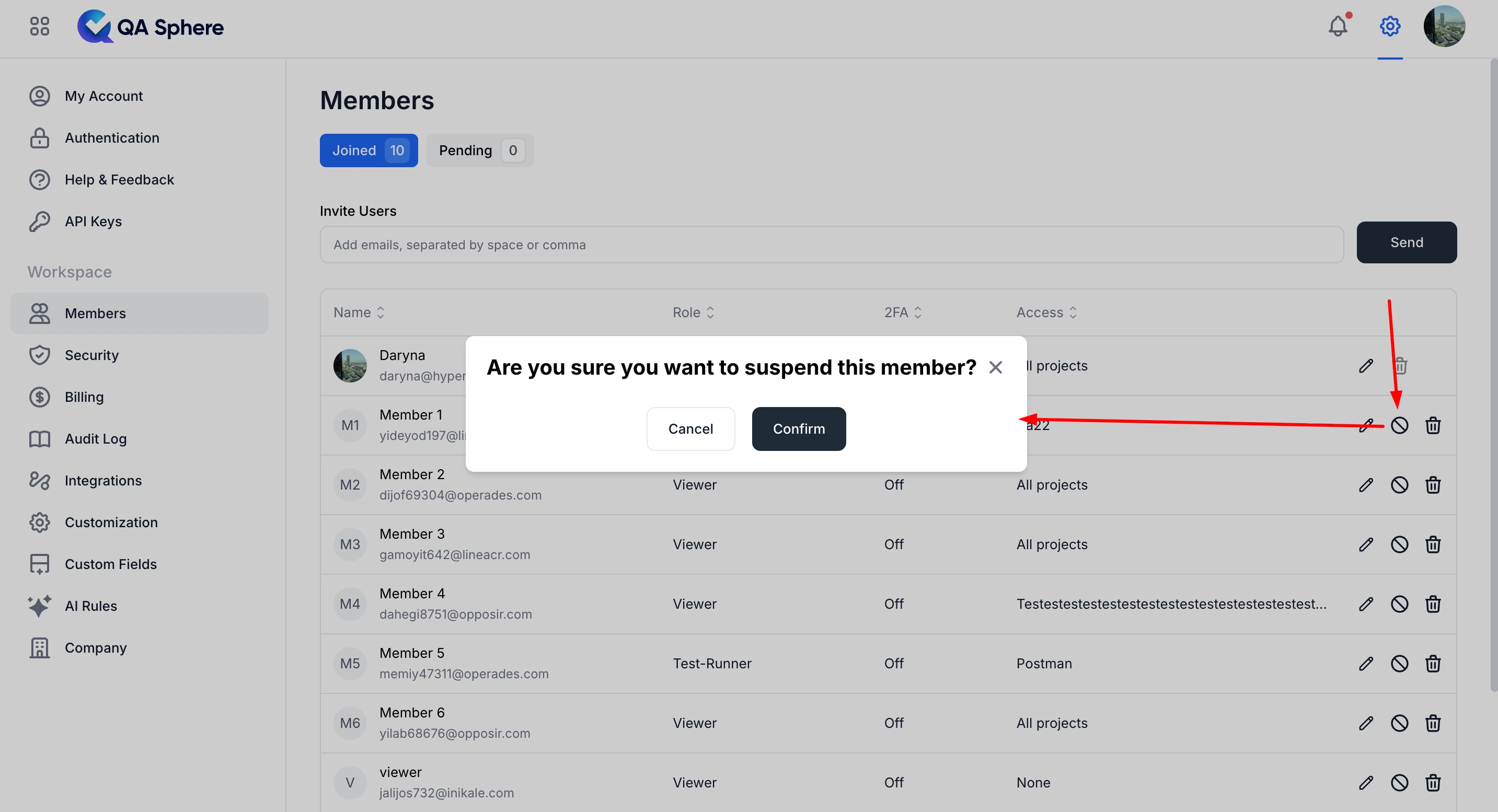
Suspend rather than delete when someone leaves a team temporarily, when an account may be compromised, or when you want to free a seat without losing attribution. See Users and Permissions for roles and project access.
API keys owned by a suspended user stop working: requests made with them return 403. If a departing user's key is used by a pipeline, reissue the key under a different account before suspending them.
Automated Provisioning
On the Business plan, SCIM 2.0 lets your identity provider create, update, and deactivate QA Sphere users automatically. Setting active: false from the IdP suspends the user in the same way as the manual action above; active: true restores them.
Audit Log
Every significant action in the workspace is recorded in the audit log, viewable under Settings → Audit Log. It covers user and permission changes, integration and webhook configuration changes, SCIM-driven changes, and rejected authentication attempts, which can be filtered specifically when investigating suspicious sign-in activity.
For SIEM ingestion, the audit log is available through the public API, and you can create API keys restricted to only that endpoint by naming them with the SIEM-LOG-ONLY prefix — a key named SIEM-LOG-ONLY-splunk can read audit logs and nothing else. See the Audit Logs API.
What Each Plan Includes
| Control | Free | Standard | Business | Enterprise |
|---|---|---|---|---|
| Two-factor authentication (per user) | Yes | Yes | Yes | Yes |
| Google Sign-In (and its domain allowlist) | — | Yes | Yes | Yes |
| SAML 2.0 SSO | — | — | Yes | Yes |
| SCIM provisioning | — | — | Yes | Yes |
| Audit log | Basic | Basic | Extended | Extended |
| Advanced authentication: 2FA enforcement, IP allow list, audit log API for SIEM | — | — | Yes | Yes |
See Billing for full plan details.