

Reports Overview
Comprehensive guide to QA Sphere reporting capabilities
QA Sphere provides powerful reporting capabilities that transform your test data into actionable insights. Reports help you track quality trends, identify bottlenecks, analyze test effectiveness, and make data-driven decisions about your testing strategy.
Available Reports
The Reports page has two parts: an Overview section with ready-made charts you can read at a glance, and eight built reports you configure and generate on demand.
Overview Charts
The Overview section at the top of the Reports page shows built-in charts for key testing metrics across the project, with a date range filter. Charts expand and collapse individually, so you can focus on the metric you care about. Nothing to configure — open the Reports tab and the Overview is already populated.

Use the Overview for a quick pulse check, and build one of the reports below when you need a specific slice of data, a shareable artifact, or a PDF export.
Test Run Reports
Reports that analyze test run executions and results:
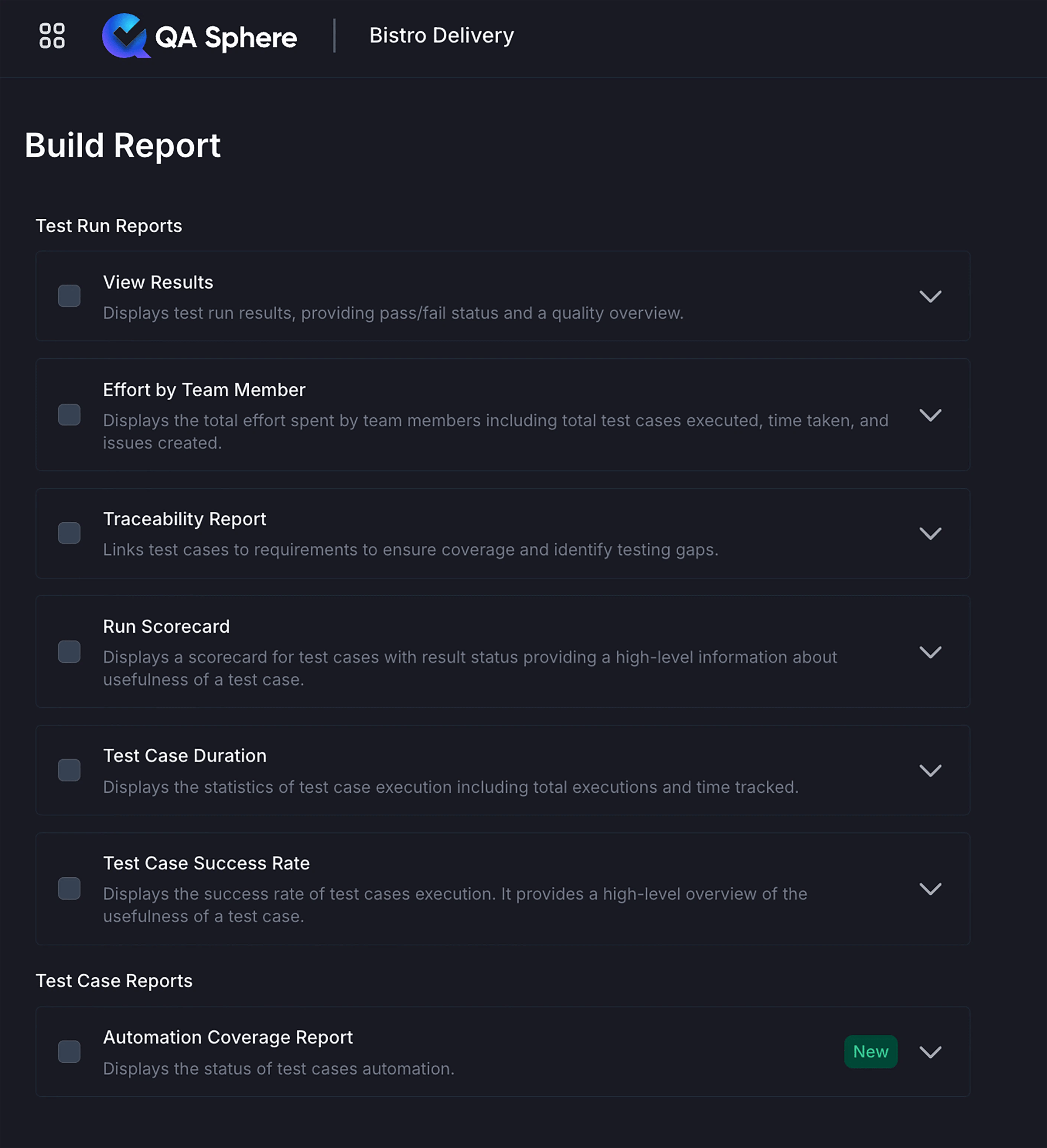
1. View Results - Comprehensive overview of test case execution results
2. Detailed Results - Full result detail for a test run, including tester comments, attachments, and linked issues
3. Run Scorecard - Compare multiple test runs across configurations
4. Traceability Report - Map test cases to requirements for coverage analysis
5. Effort by Team Member - Track individual team member testing effort and productivity
6. Test Case Duration - Analyze execution times to optimize test suites
7. Test Case Success Rate - Identify unreliable tests across multiple executions
Test Case Reports
Reports that analyze individual test case performance:
8. Automation Coverage - Track automation status and helps identify manual testing gaps
How to Create a Report
Follow these steps to generate any report in QA Sphere:
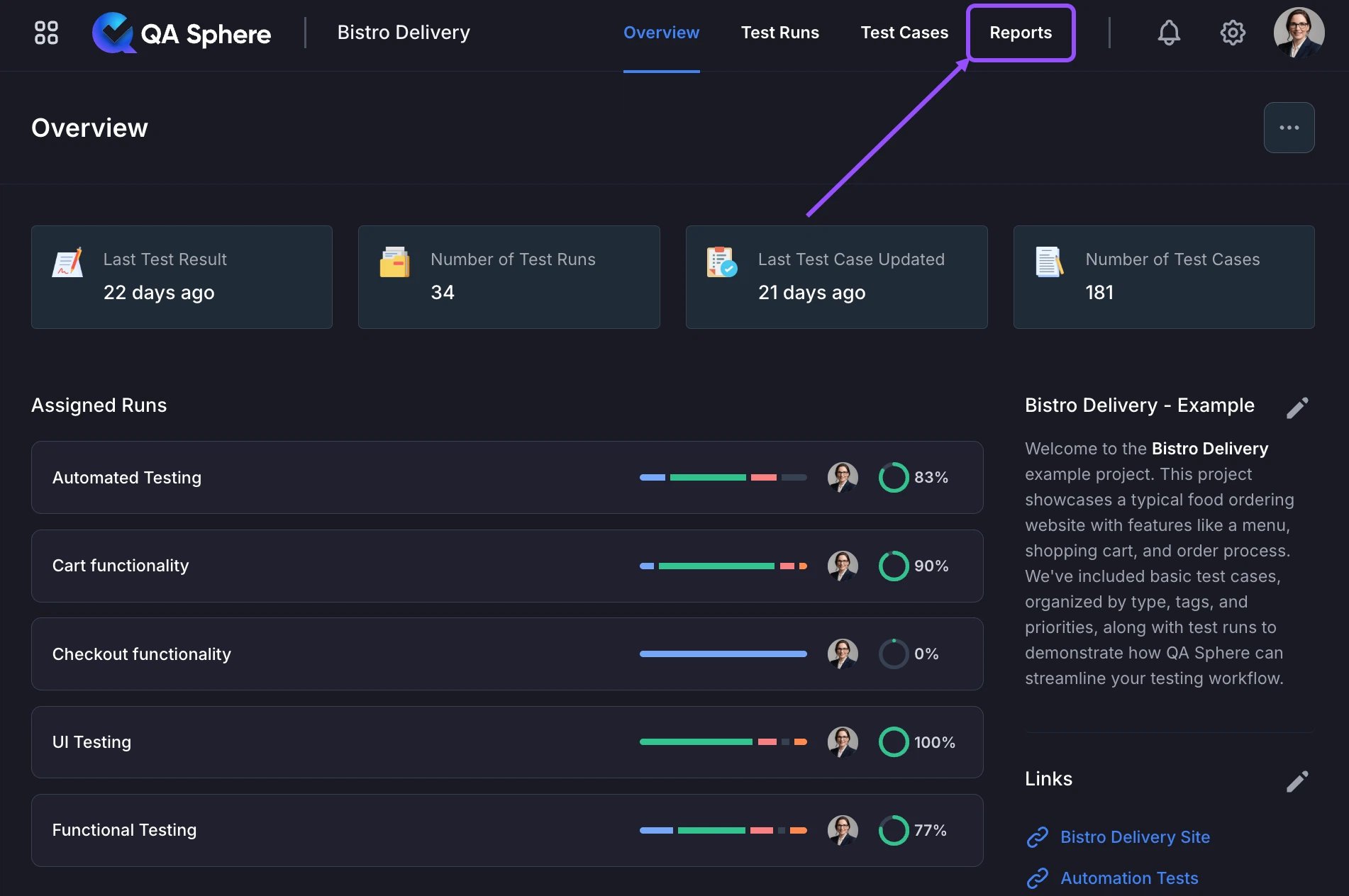
- Navigate to Reports - Switch to the Reports tab in your project
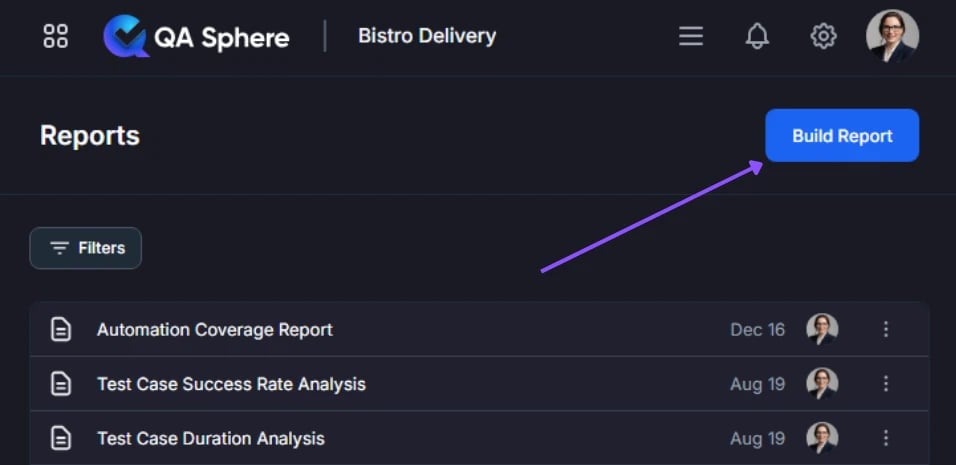
- Start Building - Click the Build report button
- Select Report Type - Choose the report you want to generate and click Next
- Configure Report - Fill in the required information on the configuration form (options vary by report type)
- Generate - Click Build report to create your report
Quick Reference Guide
| Report | Best For | Key Question Answered |
|---|---|---|
| View Results | Daily standups, sprint reviews | "What's our current test status?" |
| Detailed Results | Handover, defect triage, audit evidence | "What exactly happened in this run?" |
| Run Scorecard | Cross-browser/environment comparison | "How do Chrome vs Safari tests compare?" |
| Traceability Report | Release readiness, compliance | "Are all requirements covered by tests?" |
| Effort by Team Member | Resource planning, workload balancing | "How is testing effort distributed?" |
| Test Case Duration | CI/CD optimization | "Which tests are slowing us down?" |
| Test Case Success Rate | Test maintenance prioritization | "Which tests are unreliable?" |
| Automation Coverage | Automation strategy | "What's our automation progress?" |
For detailed information about each report, see the individual report documentation pages listed above.
Next Steps: Explore individual report types to understand their specific capabilities. Start with View Results for a quick snapshot of your testing status.