

Migrate from Qase
Export your Qase test repository to CSV and import it into QA Sphere with the built-in Qase importer
QA Sphere has a built-in importer for Qase CSV exports. It rebuilds your Qase suite hierarchy as folders and keeps titles, steps, expected results, preconditions, priority and tags. It stores the Qase case ID as the Legacy ID. The importer uses no AI credits and gives the same result every time.
The Qase CSV export contains test cases only. Test runs, results, defects and test plans are not migrated by this path.
For several projects, attachments, shared steps or custom fields, our team can migrate your data with dedicated migration tools. See Assisted migration.
Before you start
- One Qase project = one QA Sphere project. Create the target project in QA Sphere first, then export and import each Qase project separately.
- Keep the default Automation field. The importer writes the Qase automation status to the project's Automation custom field (a dropdown with the options Automated and Planned). Make sure the field and these options exist in the target project.
- Check customized Qase fields. Paid Qase plans let you edit the options of system fields such as priority, severity and type. The mapping below uses the default Qase values. Values that do not match are handled as described in the mapping table.
- Choose the target folder. You can import into the project root or into the folder that is currently open.
Step 1: Export your test cases from Qase
These steps follow the Qase documentation (checked October 2026):
- In Qase, open the project and go to Repository.
- Clear all filters and the search field. Active filters and search terms apply to the export.
- In the top-right menu, select ... > Export Data.
- Select CSV as the format.
- Select a sort order. By position in suite keeps the order you see in Qase.
- Confirm and download the file.
To export only part of the repository, open that suite first and export from there.
Qase also offers XLS, XML, JSON, PDF and HTML exports. The QA Sphere Qase importer reads the CSV export only.
Do not open and save the file in a spreadsheet application before you import it. The importer needs the original column names (title, suite, suite_id) and the way Qase escapes multi-line steps.
Step 2: Import into QA Sphere
-
Open the target project and go to the Test Cases tab.
-
Click

-
Select Import.
-
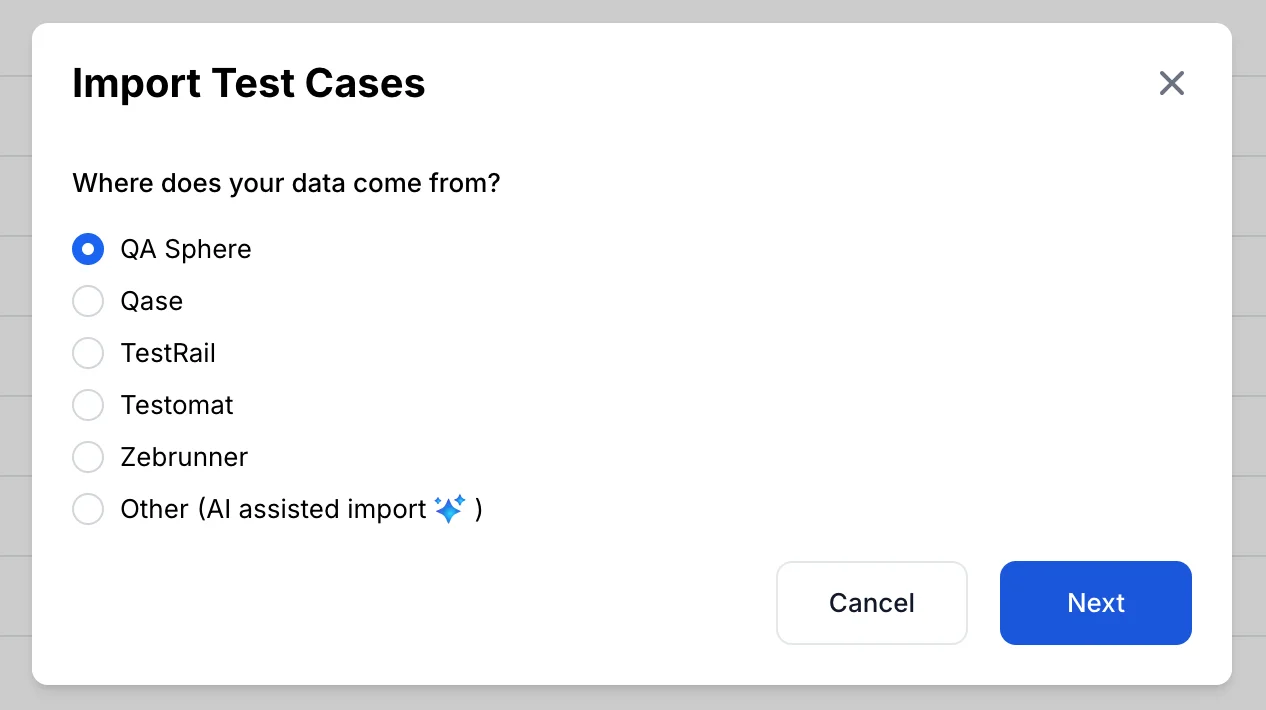
Under Where does your data come from?, select Qase and click Next.
-
Keep the separator as
,(comma). -
Select where to import: the project root or the current folder.
-
Select the CSV file that you exported from Qase.
-
Optional: select the checkbox whose label starts with Overwrite existing test cases to update cases that already exist. Cases are matched by Legacy ID, or by folder and name if there is no Legacy ID.
-
Start the import.
The importer requires the title, suite_id and suite columns. If one of them is missing, the import stops with an error.
If some rows have no suite, the dialog only lets you import into the folder that is currently open, and those rows are placed directly in that folder. Open a folder before you start the import in that case.
The validation rules of the CSV import also apply. For example, a test case name can have at most 511 characters and a Legacy ID at most 255 characters.
How Qase fields map to QA Sphere
The table shows the Qase CSV columns that the QA Sphere importer reads. The importer ignores all other columns.
| Qase column | QA Sphere | Notes |
|---|---|---|
suite, suite_id, suite_parent_id | Folder path | Nested suites become nested folders. Rows with suite_without_cases set to 1 create empty folders. |
title | Name | |
v2.id | Legacy ID | Used to match cases when you import again with Overwrite existing test cases |
description, preconditions | Preconditions | Description first, then preconditions. Markdown is kept. |
steps_actions, steps_result | Step N, Expected N | Classic and Gherkin steps. Gherkin steps keep their Given/When/Then text. |
steps_data | Added to the step under a Test Data heading | Classic steps only |
postconditions | Final step (action only) | Added after the last step |
priority | Priority | low and high are kept. medium, not set and other values become medium. |
status | Draft flag or tag | draft sets the Draft flag. deprecated adds the tag deprecated. |
severity | Tag sev:<value> | For example sev:critical. normal and not set add no tag. |
type | Tag <value> | For example regression. other adds no tag. |
is_flaky, is_muted | Tags flaky, muted | Added when the value is yes |
tags | Tags | Comma-separated. Duplicates are removed. |
automation | Custom field Automation | automated becomes Automated. to-be-automated becomes Planned. Other values leave the field at its default. |
What is not imported
- Behavior, layer, milestone and parameters. The importer ignores the
behavior,layer,milestone,milestone_idandparameterscolumns. Qase parameters are not converted to QA Sphere template test cases. Recreate templates manually if you need them. - Attachments. Files attached to Qase test cases are not carried over. Upload them again in QA Sphere, or use Assisted migration.
- Qase custom fields. The built-in importer ignores Qase custom fields. To import them, use Assisted migration or AI Assisted Import with Other as the source, or set the values with the Test Case Custom Fields API.
- Test runs, results, defects and plans. These are not part of the Qase CSV export.
Assisted migration
For migrations with several projects, a large number of test cases, attachments, shared steps or custom fields, our team runs the migration for you. We use the same migration tools as for TestRail migrations. The tools read your data through the Qase API instead of the CSV export, so they carry over more than the built-in importer.
How it works
- You create a Qase API token. Create it in Qase under Settings > API tokens and send it to us. You can revoke it when the migration is complete.
- We extract your data. Our migration tool reads your projects, suites, test cases, shared steps, attachments and field definitions from Qase. It only reads from Qase and does not change your data there.
- We agree on the field mapping with you. The tool lists the Qase fields and values that your test cases use. Together we decide where each one goes in QA Sphere, for example which custom field receives the Qase severity.
- We import into QA Sphere. The tool creates the projects, folders and shared steps, uploads the attachments and imports the test cases.
- We verify the result. We check that every Qase test case is present in QA Sphere and go through any warnings with you.
What assisted migration carries over
- The suite tree, as nested folders, in the same order as in Qase.
- Titles, descriptions, preconditions, postconditions, steps, expected results and test data, with formatting, tables and links. Nested steps are kept in reading order.
- Shared steps, as QA Sphere shared steps.
- Test case and step attachments, including inline images. They are uploaded to QA Sphere and the links in the test cases point to the uploaded copies.
- Priority, status, tags, and the flaky and muted flags.
- Severity, type, behavior, automation status and your Qase custom fields, mapped to QA Sphere custom fields.
- External issues, as requirements.
- Qase case IDs, kept as Legacy IDs.
Parameters are not converted to template test cases. Their names and values are added to the preconditions as a table, so their values are kept. Steps written in Gherkin (BDD) syntax are not converted. Before the import, we show you which test cases use them. The built-in importer does import Gherkin steps. Test runs, results, defects, milestones, plans and users are not migrated.
Why it is reliable
- Safe to run again. If an import stops, we run it again. It continues where it stopped and updates the test cases it already created instead of making copies.
- Checked against your data. After the import, the migration tool compares QA Sphere with your Qase data and names any test case that is missing.
- Problems are recorded, not hidden. If an attachment fails to download or a value cannot be mapped, the tool records a warning instead of skipping it silently. We review these warnings with you.
To start, contact us or email sorted@qasphere.com.
After the import
- Compare the QA Sphere folder tree with the Qase suite tree.
- Open a few test cases with many steps, test data or Gherkin steps and check them.
- Check the
sev:*, type,flakyandmutedtags. Remove the tags that your team does not need. - Check the values of the Automation field.
- Confirm that the test cases have Legacy IDs, so that a later import with Overwrite existing test cases matches them.
- Invite your team. See Users and Permissions.
FAQ
Does the Qase import use AI credits?
No. Only AI Assisted Import and Bulk Write with AI use AI credits.
Can I run the import again?
Yes. Select Overwrite existing test cases. Test cases are matched by Legacy ID (the Qase v2.id), or by folder and name if there is no Legacy ID.
Can I import Qase test runs or results?
No. The Qase CSV export and the QA Sphere Qase importer cover test cases only.
My Qase export is XLS, JSON or XML. Can I import it?
Export the project again as CSV. The Qase importer reads the CSV export only.
Can you migrate attachments and custom fields?
Yes, with Assisted migration. Our team migrates attachments, shared steps and custom fields with our migration tools.