

Migrate from TestRail
Export test cases from TestRail as CSV and import them into QA Sphere with the built-in TestRail importer
QA Sphere has a built-in TestRail importer that reads TestRail's CSV export as-is. It does not use AI, so the same file gives the same result every time. This page covers the TestRail export settings, how TestRail columns map to QA Sphere fields, what the importer does not carry over, and how to check the result. For the import dialog in general, see Import. For large migrations, our team can migrate your data with dedicated migration tools; see Assisted Migration.
Before You Start
- Each TestRail project becomes one QA Sphere project. Create the project first; see Quick Start.
- You need a role that can create test cases; see Users and Permissions.
- Decide whether you need attachments, custom fields, or TestRail case IDs. The built-in importer does not migrate them. Read What the Built-in Importer Does Not Migrate first, because it decides between the built-in importer, AI Assisted Import, and assisted migration.
Step 1: Export Test Cases from TestRail
These steps follow TestRail's own export dialog as of October 2026. Labels may differ slightly in other TestRail versions.
- In TestRail, open the project and go to the Test Cases page.
- Click the Export icon at the top right of the test case list and choose CSV. TestRail also offers Excel and XML, but QA Sphere's TestRail importer reads the CSV export.
- In the Export to CSV dialog, keep Export all sections, or select the sections you want to migrate.
- Under Columns, select at least Title and Section Hierarchy, plus the columns you want to keep: Priority, Preconditions, References, Type, Section Description, and the step columns for your template. These are Steps and Expected Result for the Test Case (Text) template, or Steps (Step) and Steps (Expected Result) for the Test Case (Steps) template. The importer ignores other columns, such as ID, Estimate, or Created By, so extra columns do no harm.
- Leave Include separated steps on separate rows unchecked. The importer expects one test case per row.
- Click Export and save the file.
Section Hierarchy becomes the folder path in QA Sphere. If the column is missing or empty, the test cases are imported into a single folder named TestRail Import.
If a TestRail project has several test suites, export each suite separately and import each one into its own folder.
Step 2: Import into QA Sphere
- Open the QA Sphere project, go to the Test Cases tab, click
 and select Import.
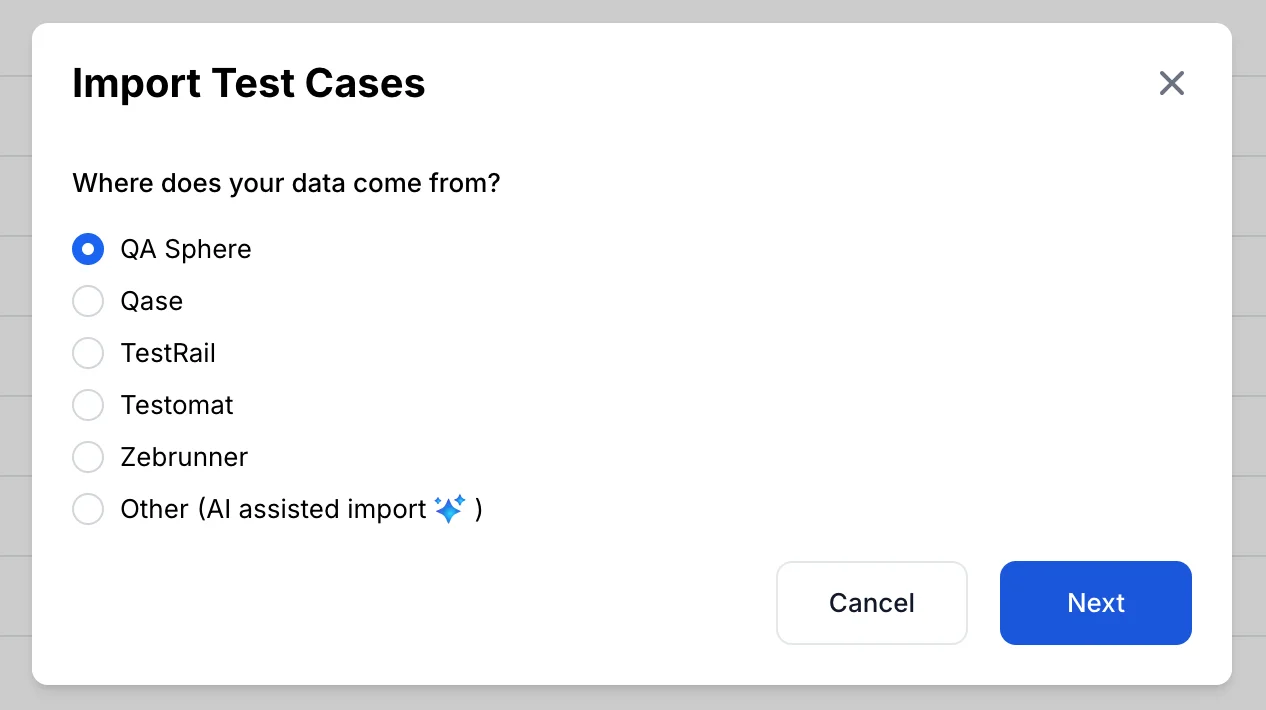
 - Under Where does your data come from?, choose TestRail.
- Under Is your migration complex?, choose No, I would like to try self-service import and click Next. If you choose Yes (multiple projects, thousands of test cases, attachments), the dialog opens a support request to our team instead; see Assisted Migration.
- Select the CSV file, the folder to import into (Import to), and the Separator.
- Review the detected columns and any row errors, then import. Rows with errors are listed so you can fix them in the file.
Field Mapping
| TestRail column | QA Sphere field | Notes |
|---|---|---|
| Title | Name | Required. Maximum 511 characters. |
| Section Hierarchy | Folder | Split on >. Nested folders are created automatically. Empty values go to the TestRail Import folder. |
| Section Description | Folder comment | Set on the folder of the test case. |
| Preconditions, Mission, Goals | Preconditions | Combined into one field. Mission and Goals are added under Mission: and Goals: headings. |
| Steps, Expected Result | Step 1, Expected 1 | Test Case (Text) template: imported as one step. |
| Steps (Step), Steps (Expected Result) | Step N, Expected N | Test Case (Steps) template: numbered lines (1. ..., 2. ...) become separate steps. A line without a number is added to the previous step. |
| Priority | Priority | QA Sphere has three priorities: low, medium, and high. Numeric priorities map 1-2 to low, 3 to medium, and 4 or higher to high. Named priorities such as Low, High, or Critical are currently imported as medium, so check priorities after the import. |
| References | Requirements | Comma-separated. A URL becomes a requirement link; any other value, such as DH-22, becomes a requirement title without a URL. |
| Type | Tags | The TestRail type, such as Functional or Regression, becomes one tag. |
All imported test cases are standalone test cases, not drafts. The importing user becomes the author.
What the Built-in Importer Does Not Migrate
- Attachments and inline images. They are not imported. Inline image references in TestRail text fields are kept as-is and do not display in QA Sphere. To bring files across, use Assisted Migration, or upload the files with the Upload Files API and reference them in the
Filescolumn of a QA Sphere CSV. - TestRail case IDs (for example C1234). They are not stored. To keep them as Legacy IDs, use AI Assisted Import: choose Other (AI assisted import) and add an instruction such as "keep the ID column as Legacy ID".
- Other fields (for example Estimate, Labels, and custom fields such as Automation Type). They are not mapped. To keep them, define matching custom fields in the QA Sphere project first, then use AI Assisted Import, which maps columns to custom fields. AI Assisted Import accepts files up to 1 MB, 5,000 rows, and 256 columns.
- Test runs, results, milestones, and test plans. The import brings test cases only. Start new runs in QA Sphere (see Test Plans), and upload automated test results with the QA Sphere CLI.
Assisted Migration
For migrations with several projects, a very large number of test cases, or attachments, our team runs the migration for you with our own TestRail migration tools. These tools read your data through the TestRail API instead of the CSV export, so they carry over more than the built-in importer, including attachments and TestRail case IDs. Readdle is one of the teams that moved from TestRail to QA Sphere this way.
How It Works
- You extract your data. Run our open TestRail migration tool on any computer that has Docker and can reach your TestRail URL. The tool only reads from TestRail. It saves your projects, test suites, sections, test cases, and attachments to one compressed file. Your TestRail credentials stay on your computer.
- You send us the file. It is a standard SQLite database, so you can open it and check its contents before you send it. It does not contain your user list or any test run data.
- We import it into QA Sphere. Our migration tool creates the projects and folders, uploads the attachments, and imports the test cases.
- We verify the result. We check that every TestRail test case is present in QA Sphere and go through any warnings with you.
The tool's README has the setup steps, the commands, and troubleshooting. You choose which projects to extract: active projects, archived projects, or specific projects by ID. The extraction takes from a few minutes to a few hours, depending on the size of your TestRail instance.
What Assisted Migration Carries Over
- Test suites and sections, as nested folders. Section descriptions become folder comments.
- Titles, preconditions, steps, and expected results, with formatting, tables, and links. Steps that use TestRail shared steps keep their content as regular steps.
- Test case attachments and inline images. They are uploaded to QA Sphere and the links in the test cases point to the uploaded copies.
- References as requirements, priorities as QA Sphere priorities, and types as tags.
- The automation status field.
- TestRail case IDs, kept as legacy IDs.
Assisted migration does not migrate test runs, results, test plans, milestones, or users. Custom fields other than automation status are not migrated. Before the import, we show you which custom fields contain data, so you can decide what to recreate in QA Sphere.
Why It Is Reliable
- Safe to run again. You can run the extraction several times, for example active projects first and archived projects later. New data is added to the same file and existing data is updated, not duplicated. On our side, if an import stops, we run it again: it continues where it stopped and updates the test cases it already created instead of making copies.
- Checked against your data. After the import, the migration tool compares QA Sphere with your TestRail data and names any test case that is missing.
- Problems are recorded, not hidden. If an attachment fails to download or a value cannot be mapped, the tools record a warning instead of skipping it silently. We review these warnings with you.
To start, choose Yes under Is your migration complex? in the import dialog, contact us, or email sorted@qasphere.com.
Verify the Import
- Counts: the number of test cases in each folder matches the number in the corresponding TestRail section.
- Steps: open five to ten test cases with the most steps and check that steps and expected results line up. Lines that were not numbered in TestRail are added to the previous step.
- Priorities: compare the low, medium, and high counts with TestRail and correct any test cases that were imported as medium.
- Requirements: open a test case that had References in TestRail and check its requirements.
- Tags: the TestRail types appear as tags. Rename or merge them as needed.
- Re-importing: to update test cases instead of creating copies, select Overwrite existing test cases when you import the file again. For TestRail files, test cases are matched by folder and name.
Frequently Asked Questions
Can I import TestRail's XML or Excel export?
No. The TestRail importer reads CSV. Export the test cases as CSV from TestRail.
How do I keep TestRail case IDs?
Use AI Assisted Import and ask it to keep the ID column as the Legacy ID. Assisted Migration also keeps TestRail case IDs as legacy IDs.
Are attachments migrated?
Not by the built-in importer. Assisted Migration migrates test case attachments and inline images. You can also upload files with the Upload Files API.
Do I have to give QA Sphere access to my TestRail instance?
No. For Assisted Migration, you run the TestRail migration tool yourself and send us the file it creates. Your TestRail credentials stay on your computer.
Can I migrate test runs and results?
No. The import brings test cases only.
Is there a size limit?
AI Assisted Import accepts files up to 1 MB, 5,000 rows, and 256 columns. For very large migrations, use Assisted Migration.
Need Help?
Use the Help & Feedback form in the app, email sorted@qasphere.com, or see Help and Support.