

Import from Excel or CSV
Import test cases from a CSV file - a QA Sphere export, a spreadsheet saved from Excel or Google Sheets, or a file built in QA Sphere's test case format
QA Sphere imports test cases from CSV files. A QA Sphere export, or any file in QA Sphere's test case format, is imported exactly as written. Exports from Qase, TestRail, Testomat, and Zebrunner use the built-in importers in the same dialog, and spreadsheets in any other layout can go through AI Assisted Import. See the import overview to compare all import methods.
Preparing a File in Excel or Google Sheets
QA Sphere imports the CSV text file, not the Excel workbook (.xlsx), so save your spreadsheet as CSV before you import it:
- Put one test case on each row, with the column headers from QA Sphere's test case format in the first row
- Put each step in its own Step N / Expected N column pair
- Save the sheet as CSV with UTF-8 encoding:
- Excel: File > Save As > CSV UTF-8 (Comma delimited)
- Google Sheets: File > Download > Comma Separated Values (.csv)
- In the import dialog, select the separator that matches your file
If your spreadsheet does not follow this layout, use AI Assisted Import instead.
Importing from the UI
- Open a project and go to Test Cases tab
- Click

- Select Import
- A CSV Import form will pop up. Select the format: QA Sphere for a QA Sphere export or a file in QA Sphere's test case format, or the source system for a Qase, TestRail, Testomat, or Zebrunner export (or Other for AI Assisted Import)
- Select separator, directory to import into, and pick a file
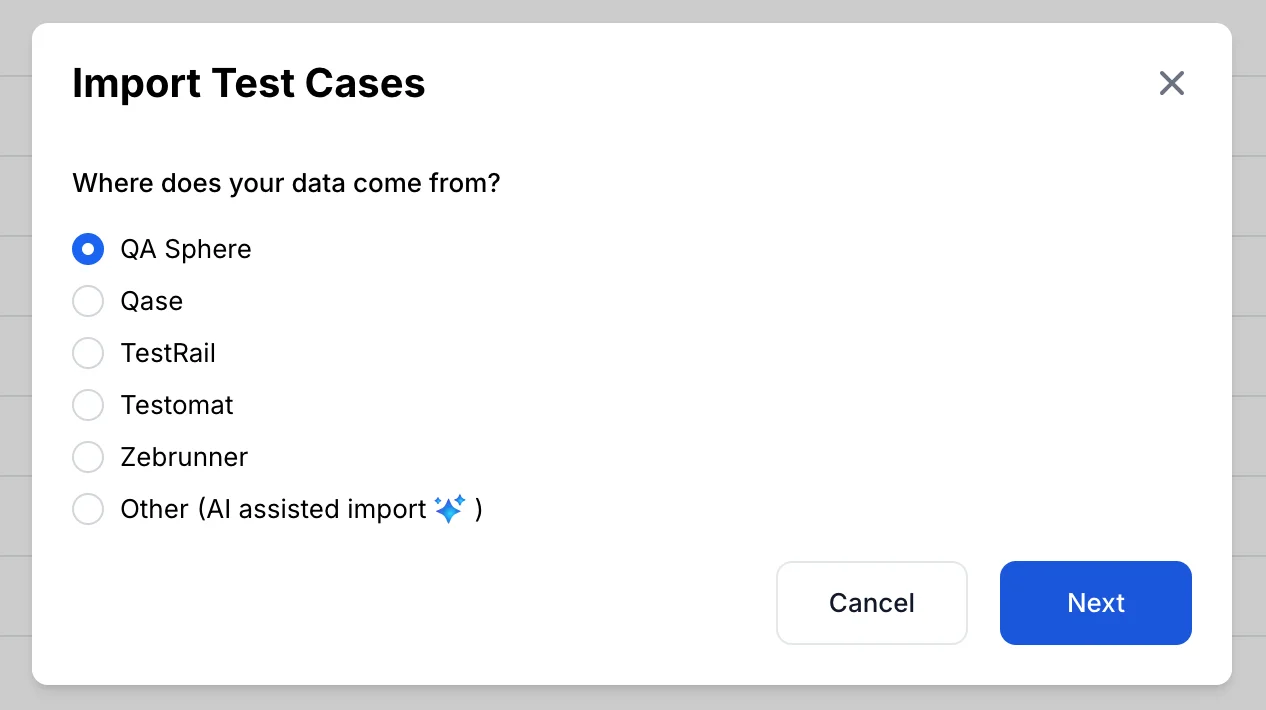
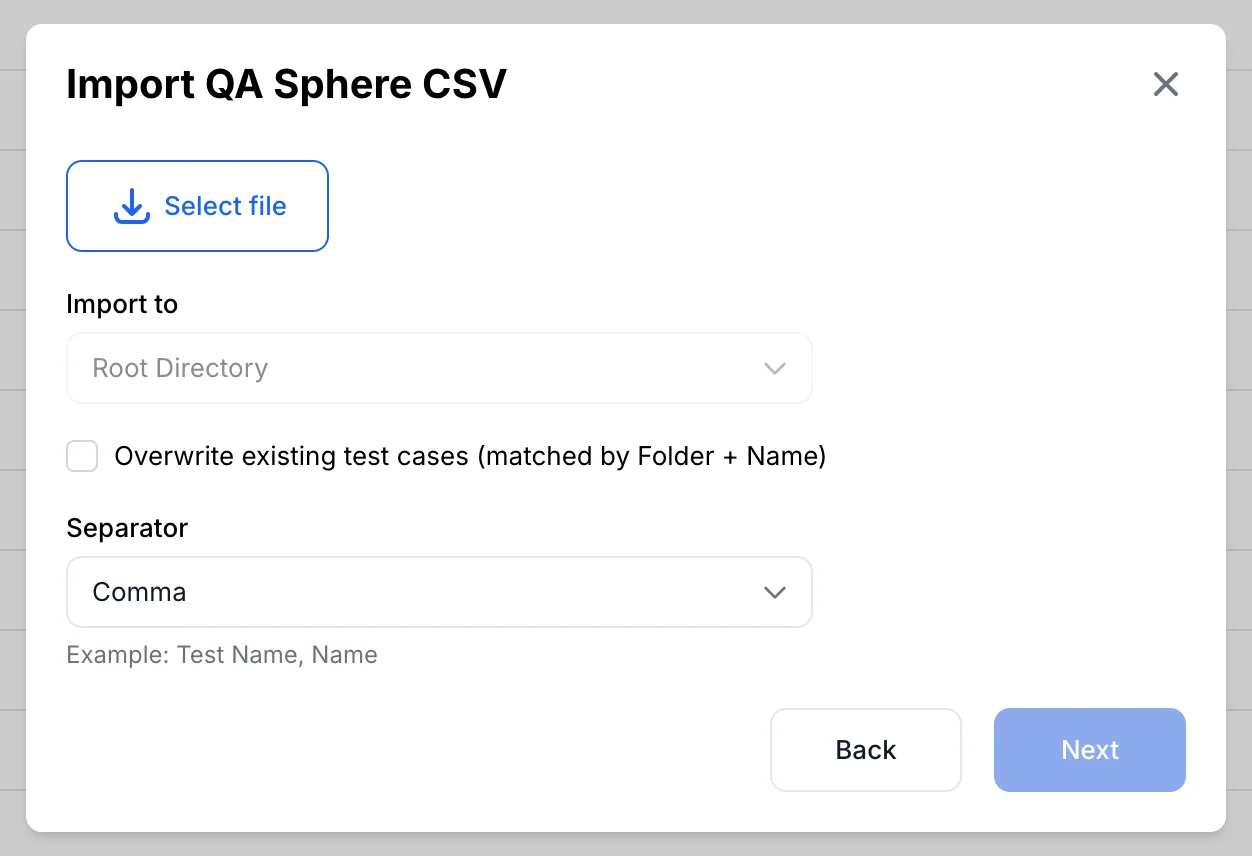
More source systems are added over time. If you are migrating from a TMS that is not listed, contact our support team — we can often handle the migration for you. Export-to-CSV followed by AI Assisted Import, or by reshaping the file into QA Sphere's format below, also works for most tools.
QA Sphere's Test Case Format
Each test case in the CSV table should have the following column structure:
Static Columns (Required):
- Folder: The complete folder path to the test case (e.g., "Integration/API")
- Name: The title of the test case (max 511 characters)
Optional columns:
- Type: The type of test case -
standalone(default) ortemplate - Draft: Whether the test case is work in progress (
trueorfalse) - Tags: Comma-separated tags for grouping and filtering test cases
- Requirements: Comma-separated requirements in format
[Title](URL) - Links: Comma-separated links in format
[Title](URL) - Files: JSON array of file objects with properties:
fileName,id,url,mimeType,size - Preconditions: Test case preconditions or description (supports Markdown)
- Priority: Test case priority -
low,medium, orhigh(Default:medium) - Legacy ID: Test case ID from existing test management system (optional, max 255 characters)
- Parameter Values: JSON array for template test cases (see Template Test Cases section)
- Template Suffix Params: Comma-separated parameter names for filled test case naming
- Folder Comment: A comment to set on the test case's folder. The value is applied to the folder named in the Folder column, so it only needs to be filled on one row per folder.
Dynamic Columns:
After the static columns, there are dynamic columns for:
Steps
- Step 1, Expected 1
- Step 2, Expected 2
- ... (continues based on the maximum number of steps in any test case)
Both Step and Expected columns support Markdown formatting.
Custom Fields
Custom fields appear after step columns with the format:
custom_field_text_{systemName}for text fieldscustom_field_richtext_{systemName}for rich text fieldscustom_field_dropdown_{systemName}for dropdown fieldscustom_field_checkbox_{systemName}for checkbox fields
For dropdown and checkbox fields, the value must match one of the options defined on the field exactly (case-sensitive). Checkbox fields are defined with one or two options, where the first option is the checked value and the second, if present, is the unchecked value — a one-option checkbox is left unchecked by supplying an empty value. See the Test Case Custom Fields API for how to read a project's field definitions and their exact option values.
Custom field values are JSON objects with properties:
value: The field value (max 255 characters)isDefault: Whether this is the default value (optional, boolean)
Example CSV
Download the example CSV to see the format in use. It covers the static, step, and custom field columns and is a good starting point for your own file.
Template Test Cases
Template test cases allow you to create test case templates with placeholders that can be filled with different parameter values. This is useful for testing the same scenario with different data sets.
How Templates Work:
- Create a template test case with
Typeset totemplate - Use placeholders in the format
${parameter_name}in these test case fields - title, preconditions, steps - Provide parameter values in the
Parameter Valuescolumn as a JSON array - QA Sphere generates filled test cases for each parameter set
Parameter Values Format:
[
  {
    "priority": "high",
    "values": {
      "username": "admin",
      "password": "admin123"
    }
  },
  {
    "priority": "medium",
    "values": {
      "username": "user",
      "password": "user456"
    }
  }
]
Template Suffix Params:
Use the Template Suffix Params column to specify which parameters should appear in the generated test case title. For example, if you set username,password and your template is titled "Login Test", the generated test cases will be:
- Login Test (username=admin, password=admin123)
- Login Test (username=user, password=user456)
Alternatively, you can declare title as Login Test for user "${user} with password "${password}" and skip Template Suffix Params
Parameters that are present in the title will be ignored if set in Template Suffix Params.
Since they are already part of the title we don't allow showing them twice.
File Attachments
Files referenced in the CSV must first be uploaded to QA Sphere via the API. The Files column should contain a JSON array with file metadata:
[
  {
    "fileName": "screenshot.png",
    "id": "file-123",
    "url": "https://qasphere.com/files/file-123",
    "mimeType": "image/png",
    "size": 102400
  }
]
See the API documentation for uploading files.
Additional Features:
- Validation: Each test case is validated for correct formatting, field lengths, and required fields
- Custom Fields: Must be pre-defined in the project before import
- Folder Structure: Folders are created automatically based on the paths specified
- Author Assignment: The import process automatically assigns the importing user as the author
- Contributor Management: After a successful import, it creates the importing user as a contributor to the project