
How to Write Effective Test Cases + Templates

Test Case Template Word
A test case template Word document is often used for documentation or stakeholder review.
Download Word Test Case Template (.docx)
User Acceptance Testing (UAT) Test Case Template
A UAT test case template focuses on business scenarios and acceptance criteria rather than technical validation.
The Excel template above includes a dedicated UAT Test Case sheet designed specifically for business-focused testing. It contains columns for Business Process, Acceptance Criteria, User Actions, Expected Business Outcomes, and Business Owner Sign-off—everything you need to validate that the software meets real business needs before go-live.

Why a Test Management System Beats Spreadsheets and Documents
While Excel and Word templates are a common starting point, managing test cases in individual files or long documents quickly becomes impractical as your project scales. Searching across multiple files, keeping versions in sync, and tracking who executed which tests and when—all of this turns into manual overhead.
A dedicated test management system like QA Sphere solves these problems by keeping all your test cases in one place with powerful search, filtering, and organization features. You can structure test cases into folders, link them to requirements, and collaborate with your team in real time.
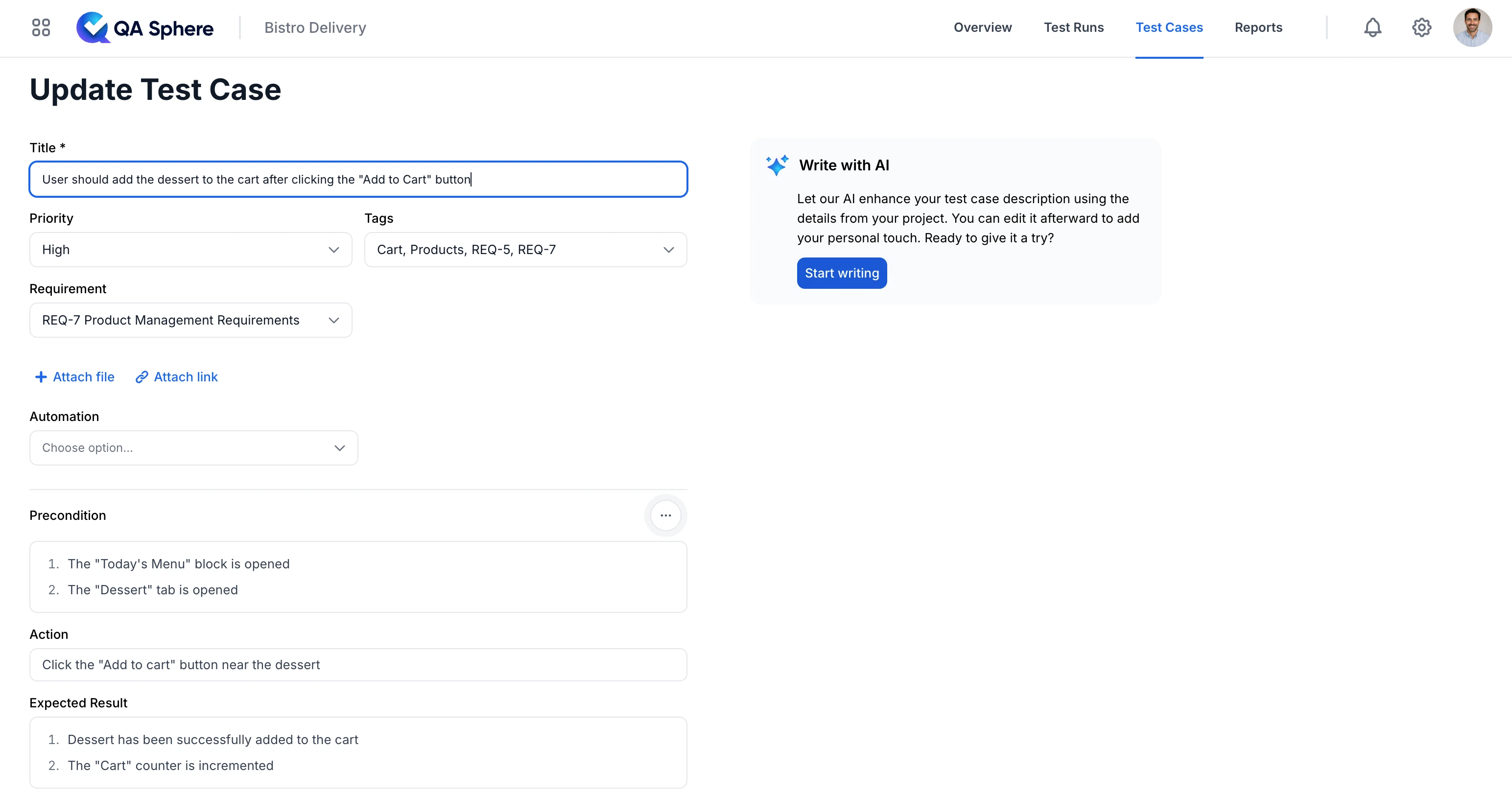
The screenshot above shows the QA Sphere test case editor in action. You can see how each test case includes structured fields for Priority, Tags, and a Requirement link that connects directly to your project requirements. The Precondition, Action, and Expected Result sections provide a clear, step-by-step format that any team member can follow. There's also an Automation field to track whether the test case has been automated—helpful for teams balancing manual and automated testing.
On the right side, you'll notice the "Write with AI" feature. QA Sphere's AI assistant can help you draft test case descriptions based on your project context, saving time while maintaining consistency across your test suite.
QA Sphere also supports custom fields, so you can tailor test cases to your workflow—whether you need to track component, environment, test type, or any other attribute specific to your project.
One important distinction: in QA Sphere, the status (Pass, Fail, Blocked, etc.) is recorded during test runs, not in the test case library itself. This separation makes sense because a test case is a reusable definition of what to test, while the status reflects the outcome of a specific execution. Your test case library stays clean and focused on the "what," while test runs capture the "when" and "how it went."

Written by
QA Sphere TeamThe QA Sphere team shares insights on software testing, quality assurance best practices, and test management strategies drawn from years of industry experience.